
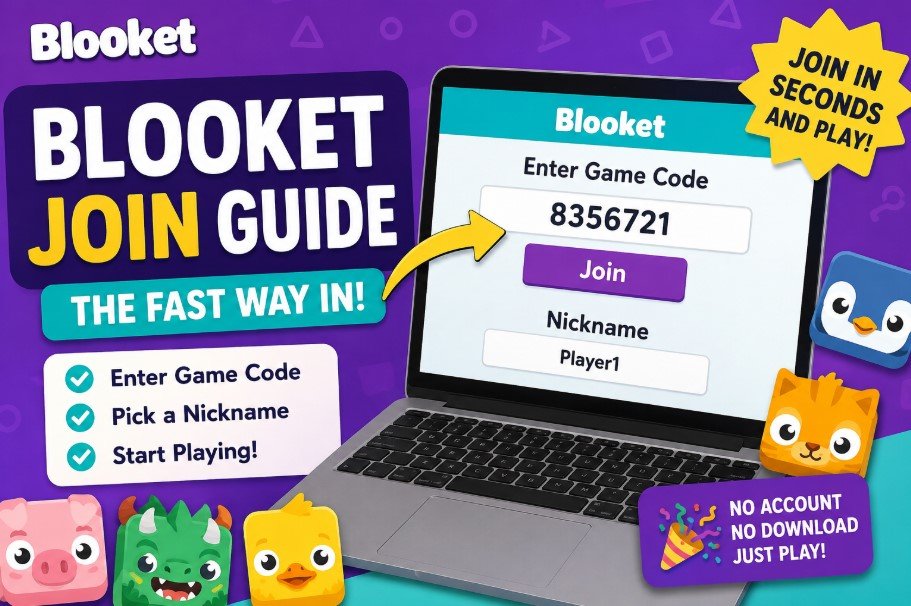
Blooket Join: The Fast Way In
Everything you need to jump into a Blooket game in under 30 seconds — code, steps, and fixes for common errors.
What Does “Blooket Join” Actually Mean?
“Blooket join” simply refers to the moment a player enters a game code on blooket.com/play to jump into a live Blooket game hosted by a teacher, trainer, or game leader. Blooket turns ordinary quiz questions into fast, colorful, arcade-style mini-games, and joining one takes just a code and a nickname — no account, no download, and no waiting required for players.
The phrase has become one of the most searched terms among students because the process, while simple, trips people up in small ways: a mistyped code, an expired session, or a school network that blocks game traffic. This guide walks through every part of the join process in detail, plus the game modes, common errors, and smart habits that make the whole experience smoother.
What Is Blooket, Exactly?
Blooket is a web-based learning game platform built around short quiz question sets, called “Question Sets.” A host — usually a teacher — picks a set of questions and a game mode, then starts a live session. Players join that session from any device with a browser, answer the same questions as everyone else, and the correct answers translate into points, coins, or in-game advantages depending on the mode chosen.
Unlike a plain multiple-choice quiz, Blooket wraps the questions inside a game layer — racing, tower building, treasure hunting, and more — which is exactly why it feels less like a test and more like play. That game layer is also why understanding “how to join” matters: get the join step wrong, and you miss the fun part entirely.
How to Join a Blooket Game: Step-by-Step
Joining takes under a minute once you know where to look. Here is the complete process broken into clear steps:
- Open any web browser — on a laptop, Chromebook, tablet, or phone — and go to blooket.com/play.
- Enter the game code your host shared. It is typically a short numeric code displayed on the host’s screen or shared link.
- Type a nickname. Choose something clean and recognizable so your host and classmates can find you on the leaderboard.
- Tap Join Game and you’ll land on a waiting lobby. Your name should appear on the host’s screen almost instantly.
- Wait for the host to press “Start.” Once the game begins, questions will appear automatically — just answer as fast and accurately as you can.
Different Ways People Try to Join
Most players use the standard blooket.com/play route, but there are a few variations worth knowing:
Direct join links
Some hosts share a clickable link instead of a plain code. These links usually open the join page with the code already filled in, so all you need to do is add a nickname and tap Join.
Joining from a shared classroom screen
In physical classrooms, the code is often projected on a board. Type it exactly as shown — codes are numeric only, so there’s no need to worry about capital letters or symbols.
Joining on mobile
Blooket runs entirely in the browser, so there’s no dedicated player app needed. Opening blooket.com/play in Safari, Chrome, or any mobile browser works exactly the same as on a computer.
Common Blooket Join Problems (And Fixes)
| Problem | Likely Fix |
|---|---|
| “Game not found” | Double-check the code — codes are session-specific and expire the moment the host ends the game. |
| Page won’t load | Refresh the browser, clear cache, or try a different network; school Wi-Fi sometimes blocks game sites. |
| Nickname rejected | Some hosts filter inappropriate names automatically — try a simple, school-friendly nickname instead. |
| Stuck in lobby | This is normal — the host must manually press Start from their own screen before questions appear. |
| Kicked mid-game | This usually means the host ended the session early or restarted it — ask for a fresh code. |
| Slow or lagging gameplay | Close other browser tabs and apps to free up bandwidth, especially on shared school networks. |
Exploring Blooket Game Modes
Once you’re past the join screen, the mode the host picked shapes how the game feels. Here are some of the most popular ones you’ll likely encounter:
Gold Quest
Players collect gold by answering questions correctly, occasionally choosing treasure chests that can double their gold or steal from opponents. It rewards both accuracy and a bit of risk-taking.
Tower Defense
Correct answers earn resources used to build and upgrade defenses against waves of enemies. It blends quiz answering with light strategy planning.
Battle Royale
An elimination-style mode where players face off in pairs, and wrong answers can knock you out of the round, keeping tension high until a single winner remains.
Café / Factory modes
Slower-paced, management-style modes where correct answers fund upgrades to a virtual café or factory, appealing to players who enjoy building over racing.
Regardless of mode, the underlying mechanic is always the same: answer questions correctly and quickly to gain an advantage. Knowing the mode ahead of time simply helps you plan your approach once the round starts.
Tips to Play Like a Pro
1. Join a minute early
Getting into the lobby before the host starts avoids last-second connection issues and gives you a moment to make sure your nickname displays correctly.
2. Pick a clear, memorable nickname
A clean nickname helps your host track scores accurately and adds a bit of fun energy to the leaderboard without risking a rejected or filtered name.
3. Learn the game mode before questions start
A quick glance at the mode name tells you whether speed, strategy, or steady accuracy will matter most, so you can adjust how carefully you read each question.
4. Keep your connection stable
Since Blooket runs live in the browser, a stable Wi-Fi connection matters more than device power. Avoid streaming or downloading in the background while playing.
5. Don’t refresh mid-game
Refreshing your browser during an active round can disconnect you from the session. If something looks frozen, wait a few seconds before reloading.
Blooket vs. Other Classroom Quiz Tools
Many classrooms rotate between a few different live-quiz platforms, and it helps to know where Blooket fits. Compared with a plain trivia-style quiz tool, Blooket’s biggest difference is the game layer wrapped around the questions — instead of simply seeing “correct” or “incorrect,” a right answer might earn gold, build a tower, or move a racer forward. This turns repetition-heavy review sessions, like vocabulary drills or math facts, into something students want to replay.
From a join perspective, though, nearly all of these platforms follow the same basic pattern: a host generates a temporary code, players type it into a join page, and the session starts once everyone is in the lobby. So if you’ve joined any live classroom quiz game before, Blooket’s join screen will feel instantly familiar.
Etiquette and Safety Tips for Players
Because Blooket sessions are often used in shared classrooms or public review sessions, a few simple etiquette habits go a long way:
Keep nicknames appropriate
Choose a nickname you’d be comfortable seeing on a projector in front of the whole class. Hosts can remove players with inappropriate names, which can cost you your spot in the game.
Don’t share codes outside the intended group
A game code is meant for the specific class or group the host is running the session for. Sharing it publicly can flood the lobby with unrelated players and disrupt the game for everyone.
Report technical issues calmly
If you get disconnected or see an error, let your host know right away rather than repeatedly refreshing or rejoining, which can sometimes create duplicate entries on the leaderboard.
Why “Blooket Join” Keeps Trending in Searches
Search interest around this exact phrase spikes heavily during the school year, especially around exam review periods, because teachers frequently turn to Blooket for fast, low-pressure revision games. Since the join step is the very first thing a new player encounters, it’s also the step most likely to cause a quick search when something doesn’t go as expected — whether that’s a typo in the code, a page that won’t load, or simple uncertainty about where exactly to go. Understanding the process end-to-end, as covered in this guide, removes that friction entirely.
A Quick Note for Hosts
If you’re the one setting up the game rather than joining one, the process is just as simple from the host side: pick or import a question set, choose a game mode, and Blooket generates a fresh code automatically. That code is what players will type into blooket.com/play, and it stays active only for the duration of that specific session.
Frequently Asked Questions
No — players can join instantly with just a game code and nickname. An account is only needed if you want to host your own games later.
Your teacher or host will display it on their screen or share a link right before the game starts. It changes with every new session.
Yes, Blooket works in any mobile browser like Chrome or Safari — no app download needed.
Codes are tied to a single live session. If the host hasn’t started the game yet or the previous session ended, the old code will no longer work.
Usually not — most hosts require unique nicknames per session so scores don’t get mixed up on the leaderboard.
Yes, joining a game as a player is completely free and requires no payment or sign-up.