
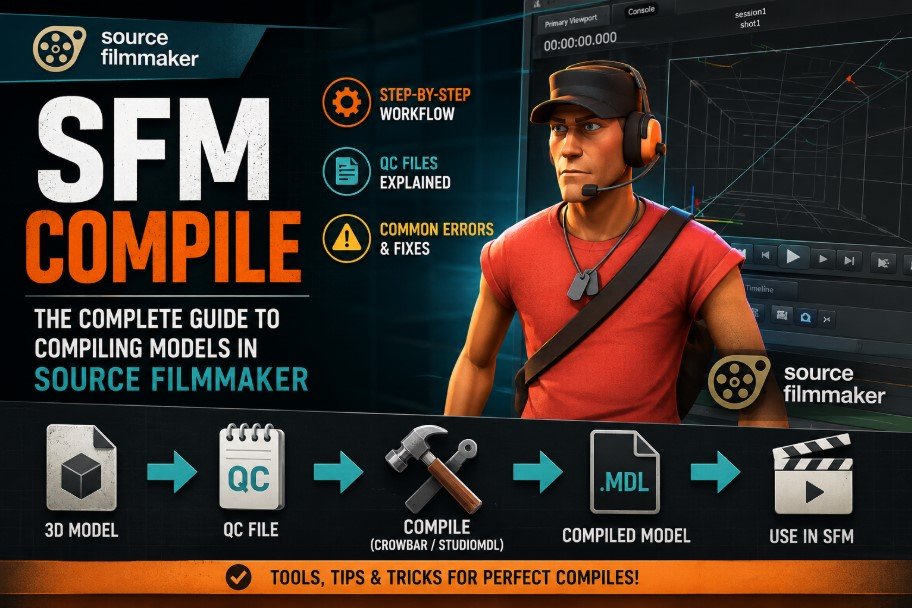
SFM Compile: The Complete Guide to Compiling Models in Source Filmmaker
Everything you need to know about turning raw 3D assets into engine-ready files — tools, QC files, common errors, and the full workflow explained simply.
If you have spent any time building custom characters, props, or animations for Source Filmmaker (SFM), you have almost certainly run into the term SFM compile. It sounds technical, and in some ways it is, but the core idea behind it is simple: your 3D model has to be translated into a format the Source Engine can actually understand before it will ever appear inside SFM.
This guide walks through what SFM compiling actually does, the tools involved, the file types you will encounter, and the most common mistakes that trip up beginners — all explained in plain language, without assuming you already know the Source Engine inside out.
What Does “SFM Compile” Actually Mean?
Source Filmmaker runs on the original Source Engine, and that engine only reads one native model format: .mdl. Whatever 3D software you used to build your character or prop — Blender, Maya, 3ds Max, or anything else — exports files in formats like .fbx or .obj, which SFM cannot open directly.
SFM compile is the conversion step that bridges this gap. It bundles mesh geometry, texture references, skeleton and bone rigs, physics data, and animation clips into a single structured package that the Source Engine can interpret. Without this step, custom assets simply will not load inside your project.
What Gets Created During Compilation
A single compile typically produces several linked output files, not just one:
The main compiled model file that SFM actually loads.
Stores vertex data — the raw shape of the mesh.
Optimized data that helps the engine render the model efficiently.
Physics collision data, used for ragdolls and interactions.
These files work together as a set — moving or renaming one without the others is one of the most common reasons a “successful” compile still fails to load properly inside SFM.
The Tools You’ll Actually Use
You don’t need a huge toolkit to compile models, but a few applications cover almost every workflow:
- Blender or Maya — where the original model, rig, and animations are built before export.
- Crowbar — a graphical compiler that wraps the underlying command-line tools in a simple interface, making it far more beginner-friendly than typing raw commands.
- Studiomdl — the actual Valve command-line compiler working behind the scenes, whether you call it directly or through Crowbar.
- A solid text editor — Notepad++ or VS Code work well for writing and checking QC files, since a single typo in a file path is enough to break a compile.
Understanding the QC File
The QC file is the instruction sheet for the entire compile. It is a plain text file that tells the compiler exactly what to do — where the model’s raw data lives, what the compiled output should be named, which materials folder to reference, and which animation sequences to include.
A simplified QC file might contain lines like these:
Each line has a specific job: naming the output model, pointing to the reference mesh, defining where textures live, and linking any animation or physics files. Getting these paths exactly right is the single biggest factor in whether a compile succeeds.
The Compiling Workflow, Step by Step
- Prepare your assets. Organize your model, textures, and animation files into clearly named folders before touching the compiler.
- Export as SMD or DMX. Your 3D software needs to export the reference mesh, skeleton, and animations in a format the compiler accepts.
- Write the QC file. Define the model name, materials path, body groups, sequences, and physics references.
- Run the compiler. In Crowbar, open the Compile tab, select your QC file, and click Compile — the log will show exactly what succeeded and what failed.
- Test inside SFM. Load the model into a new session and check that textures, animations, and physics all behave as expected.
Quick Sanity Check Before You Compile
Double-check that every file name and folder path referenced in your QC file matches the actual files on disk. This one habit prevents the majority of compile errors beginners run into.
Common SFM Compile Errors (and What They Usually Mean)
- Missing textures — almost always a mismatched or misspelled materials path in the QC file.
- Broken or twisted models — usually a rigging or bone-mapping issue between the original software and the exported SMD.
- Animations that won’t play — often caused by a mismatch between the skeleton used for the reference mesh and the one used for the animation sequence.
- Compile succeeds but model won’t load in SFM — check that all four output files (MDL, VVD, VTX, PHY) ended up in the same folder and weren’t partially overwritten.
Why Bother Compiling Correctly?
It can be tempting to rush through compiling just to see a model in-scene as quickly as possible, but a clean compile pays off later. Properly compiled assets load faster, render more efficiently, and are far less likely to break when a project is shared with another animator or opened on a different machine. A messy compile might work today and quietly fall apart the moment paths or folder structures change.
A Quick Look at Where SFM Came From
Source Filmmaker was built by Valve and shares its engine with games like Team Fortress 2 and Half-Life 2. It first became widely known through the “Meet the Team” cinematic series, which showed just how capable the engine was at handling scripted, cinematic-style animation outside of gameplay itself. Since then, SFM has grown into a full creative platform used by independent animators to produce everything from short comedic clips to polished, professional-quality films.
That growth is exactly why compiling matters so much. As more creators started bringing in custom characters, props, and environments instead of relying only on stock game assets, the need for a reliable compiling workflow became central to the whole SFM creative process.
Crowbar vs. Raw Studiomdl Commands
New users often ask whether they should learn the raw command-line compiler or just rely on a graphical tool. In practice, both approaches produce identical output — Crowbar is simply a friendlier interface sitting on top of the same underlying Studiomdl compiler Valve originally shipped.
Visual interface, clear compile logs, easier for beginners and fast iteration.
Direct command-line control, useful for scripting or automating batch compiles.
Most hobbyist animators start with Crowbar because the compile log makes it far easier to spot exactly which line in the QC file caused a problem. Studiomdl becomes more useful once you’re automating repetitive compiles across many models at once.
Tips for Keeping Your Compiles Clean
- Use consistent folder structures across every project, so QC paths stay predictable and easy to reuse between models.
- Keep a backup of your QC file before making changes — a single edit gone wrong can be hard to trace without one.
- Compile in small stages when working with a complex model — get the base mesh working before adding physics and multiple animation sequences.
- Watch your naming conventions. Avoid spaces and special characters in file and folder names, since these are a frequent, easily avoidable source of path errors.
- Re-check texture paths whenever you move a project between computers or share it with another creator — this is one of the most common reasons a previously working compile suddenly breaks.
Batch Compiling for Larger Projects
Once a project grows beyond a single character or prop, compiling one model at a time stops being practical. Several tools, including Crowbar, support batch compilation, letting you queue up multiple QC files and run them in sequence rather than manually triggering each one. This is especially useful for projects with many animation variants of the same character, or for creators maintaining a shared library of props and outfits across several scenes.
Batch compiling doesn’t remove the need for careful QC files — if one file in the batch has a broken path, it will still fail on its own without stopping the rest of the queue. But it does save a significant amount of repetitive manual work once your project reaches any real scale, which matters a lot for animators working on longer films rather than single short clips.
Frequently Asked Questions
Not necessarily. Tools like Crowbar wrap the underlying Studiomdl compiler in a graphical interface, so most beginners never need to type a raw compile command directly.
You export your model and animations from Blender as SMD or DMX files first, then run those exported files through a compiler like Crowbar alongside a QC file.
Mismatched file paths in the QC file — a folder name or file reference that doesn’t exactly match what’s on disk is responsible for the majority of failed compiles.
Yes, several compiling tools support batch compilation, which is useful when you’re working with a large number of animations or model variants at the same time.
Final Thoughts
SFM compiling can feel intimidating the first time you encounter QC files, SMD exports, and command-line compilers, but the underlying process is really just translation: turning a model built in one piece of software into a format another engine can understand. Once you get comfortable with the basic workflow — export, write the QC file, compile, test — most future compiles become routine rather than stressful.
Take the time to organize your files and double-check your paths before compiling, and most of the common errors beginners run into simply won’t happen. From there, it’s just a matter of practice. Whether you’re compiling a single custom prop for one scene or maintaining a full library of characters across a long-running project, the same fundamentals apply: clean file organization, an accurate QC file, and a habit of testing early rather than waiting until the very end of a project to discover a broken path.
For more guides, digital tools, and creator resources:
Visit Digave →